
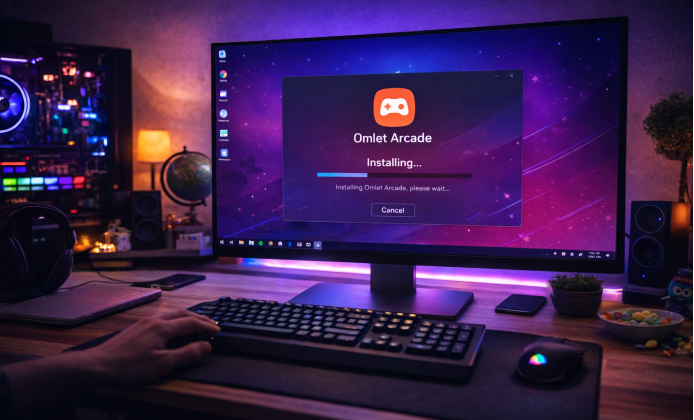
Omlet Arcade is best known for combining mobile screen recording with live streaming and social features, which makes it popular among gamers who want to share gameplay quickly. This guide walks through practical installation paths, essential permissions, and the first settings to check so you can start recording or going live with fewer surprises. Before you begin, make sure your device has enough free storage for video files, your OS is up to date, and your network is stable. If you plan to stream, a consistent upload speed matters more than peak speed, so aim for a connection that stays steady over time.
Tip: If your streams look blurry, lower the resolution before lowering the frame rate, because motion often looks smoother at a stable FPS.
What You Need Before Installation
- A supported Android or iOS device with available storage for recordings.
- A reliable Wi-Fi or mobile connection (upload stability helps streaming quality).
- Access to your streaming destination (platform login or channel permissions).
- Basic privacy awareness: recordings may capture notifications, chats, or overlays.
How to Get Omlet Arcade App Safely
For the smoothest start, you should download and install Omlet Arcade app from a trusted store, then complete the initial permission prompts. When choosing a source, prioritize official app stores whenever possible. If you use an alternative marketplace, double-check the publisher name, the update history, and user feedback, and avoid files that require extra “installer” apps.
Android Installation Walkthrough
- Open our fan website.
- Start installation and wait for the download to finish fully before opening the app.
- On first launch, confirm the requested permissions and read any on-screen privacy notes.
- Sign in, pick a username, and set a profile image only if you want public visibility.
- Run a short test recording to confirm audio, overlays, and resolution settings.
To avoid setup loops, it helps to install Omlet Arcade app and immediately grant the overlay or recording permissions when your OS prompts you.
Recommended Android Permissions (and Why They Matter)
- Microphone: required for voice commentary during recordings or streams.
- Screen capture: required to record gameplay and broadcast what’s on your screen.
- Overlay/display over other apps: helps show chat, controls, or floating widgets while gaming.
- Storage/media: lets you save and export recordings without errors.
iOS Installation Walkthrough
On iPhone and iPad, installation is usually straightforward, but the important part is enabling the system recording workflow and confirming microphone input. After setup, do a short “private test” recording so you can check whether game audio and voice audio are both captured the way you expect. If you want Omlet Arcade for free install options, stick to the platform’s store listing and any legitimate free tier offered inside the app rather than unofficial “mod” builds.
First-Time Setup Checklist
Once the app opens successfully, focus on the settings that affect quality, privacy, and stability:
- Resolution: start at 720p if you see overheating or dropped frames.
- Frame rate: 30 FPS is a safe baseline; raise it only if your device stays cool.
- Bitrate: increase gradually until video looks clear without buffering.
- Audio sources: confirm whether the app captures internal audio, mic audio, or both.
- Notifications: enable Do Not Disturb while recording to prevent sensitive pop-ups.
In many cases, the most confusing step is the Omlet Arcade app install overlay permission, because some devices hide it under advanced settings.
Windows Installation (PC) Options
If you prefer using a computer setup, you can install Omlet Arcade on Windows through an Android emulator, then adjust emulator performance settings for smoother capture. Emulators vary, but the setup idea is consistent: install the emulator, sign into a store inside it, and install the app as if you were on a phone. For best results, allocate enough CPU cores and RAM to the emulator, and enable hardware virtualization in your BIOS/UEFI if your PC supports it.
Quick Comparison Table
| Platform | Best For | Key Setup Focus | Common Pitfall |
|---|---|---|---|
| Android | Fast mobile streaming and recording | Overlay + screen capture permissions | Overlay permission disabled by default |
| iOS | Stable recording with system controls | Microphone toggle + recording destination | Mic muted during first test recording |
| Windows (Emulator) | Larger screen, keyboard workflow | CPU/RAM allocation + virtualization | Lag from low emulator resources |
Streaming Setup: Go Live Without Common Errors
- Select your streaming destination inside the app (or connect your account if required).
- Pick a title and visibility level, then confirm your audio source selection.
- Start with a short test stream to verify chat visibility, overlay placement, and latency.
- If the stream buffers, reduce bitrate first, then lower resolution only if needed.
When you do a full Omlet Arcade install and download workflow on a new device, it helps to restart once after permissions are granted to prevent capture services from failing silently.
Privacy and Safety Notes
Screen recording can capture sensitive content like notifications, private messages, or account emails. Consider turning on Do Not Disturb, hiding notification previews, and using a separate streaming profile if you want to keep personal accounts private.
Final Checks Before You Record or Stream
- Run a 10–20 second test recording and replay it with headphones.
- Confirm overlays don’t block important gameplay UI elements.
- Verify storage space and set a save location you can find later.
- Keep your first live session short while you validate stability.
Once everything looks right, you can confidently start creating content and refining quality settings as you go.


 Omlet Arcade on PC: How to Use and Stream Smarter on a Computer
 Omlet Arcade for Free: Stream, Record, and Share Your Gameplay
 Omlet Arcade APK: Fix Stream Drops, Audio Issues and Crashes
 Install Omlet Arcade Guide: Set Up Streaming, Recording, and Community Features
 Helpful Tips for Omlet Arcade App Users
 Interesting Facts About Omlet Arcade App